First app guide · Updated November 10, 2026
Create your first app.
Then make it yours.
Connect AI, describe one useful tool, open the saved result, and keep improving it in chat.
Steps refer to Leafling 1.5.5. New to Leafling? Try the official Photo Wall example first, without connecting AI.
Leafling is for personal apps: the photo view, checklist, or small utility you want to shape around your own routine. Describe what you want in chat, open the result inside Leafling, then return to chat to change it. You do not need to write the code yourself.
From a request to a tool you can use
Connect the AI you want to use.
Open Settings → AI Connection. Choose ChatGPT and tap Connect ChatGPT to connect your existing account. Or choose OpenAI API key, enter your own key and a Model ID available to your API account, then tap Save API settings. You only need one connection.
AI requests need internet. Your chosen account’s access, usage limits, and billing apply. Leafling Pro provides more saved-app space; it does not provide model usage or API credits. See OpenAI’s ChatGPT connection guidance and API pricing for current account terms.
Ask for one specific app.
Start a new chat in Chats. Say that you want an app, what you will use it for, and what its buttons should do. For a photo tool, you could paste the request below.
You can select and copy the text above.
This is a suggested request, not a recorded AI result. The official Photo Wall recording below demonstrates a saved example, not this prompt being generated. Check what your generated app actually does before relying on it.
Open the saved result and check it.
Wait for the run to finish and look for the app card marked Saved to your Apps. Tap the card or Open App to open its own preview screen. A text reply alone is not a saved app.
If the run reports an error or no saved card appears, check the message and your connection before trying again. Do not treat a progress step as a finished result.
Use it, then reopen it from Apps.
For the photo request, tap Load Photos in the generated app and review any iOS permission request. Allow only the access you want. Check that photos load, or that the app explains why they cannot. Star a photo, return to Apps, reopen your saved app, and check whether the pick remains.
These are checks to perform on your result, not a guarantee that AI will implement every detail correctly. Generated apps run inside Leafling; they are not separate App Store downloads.
Improve the same app in chat.
Return to that app’s conversation in Chats and ask for a focused change. Keep using the same app instead of starting a second copy. For example:
You can select and copy the text above.
When the updated app is saved, open it again. Check the new buttons and your earlier picks. If something is wrong, describe what happened and what you expected in the same chat.
The free plan holds up to 3 apps you create or import. Editing the same app uses the same saved-app slot. You can try the official example below before sending any AI request. Need setup help? Visit Support.
The connection to your phone
The apps you create use web interfaces inside Leafling. Supported actions connect through Leafling’s JSON Bridge to native iOS SDKs. That connection lets a personal interface work with phone data and system actions, subject to the device and the access you allow.
For example, a photo app can read the Photos library within your permitted scope. A checklist can ask to add an item to Reminders after your confirmation. The interface is yours to shape; iOS still controls sensitive access.
What we have recorded
The video below shows the official Photo Wall example reading six test illustrations through limited Photos access, saving the example, and opening it from Apps. It is a real, continuous Simulator recording from Leafling 1.5.4 (7), a test build. Photos permission was prepared before recording.
This demonstrates the official example’s connection to Photos, saving, and first opening. It does not show ChatGPT creating the app, a Reminders write, or use on a later day.
Keep your recent week in a photo wall
You want one place to look through this week’s photos, then open it again later. Start with the official Photo Wall example: preview it, check what it can read, and keep a copy in Apps. No AI connection is needed for these four steps.
Find Photo Wall in Discover.
Open Discover → Photo Wall → Preview. On the welcome screen, Try Examples Free takes you to Discover. Open Preview to try the ready-made tool before saving it.
Choose the photos it can read.
If iOS asks for Photos access, allow only the access you want. Limited access stays within the photos you allow. The example looks for up to 18 recent photos or videos from the past seven days and loads automatically. Tap Load Recent Week to retry.
Check whether the wall is yours or a sample.
A successful read shows Loaded … recent assets above the grid. Check the pictures and that status together. If access is unavailable, or no recent items can be read, the tool may show sample content instead. A colorful grid alone does not mean your library loaded.
If you chose limited access, make sure the selected items include photos from the past seven days. You can keep the access limited; you do not have to grant your whole library to try the example.
Save the tool, then reopen it.
Tap Use This. Saving opens a linked chat with a prefilled message; you do not need to send it. Go back, open Apps → Photo Wall, and check that the tool opens again.
This saves the tool inside Leafling, not a new album in Apple Photos. When it opens, it can read the recent week again within your current access. It is not a permanent archive of the pictures shown today.
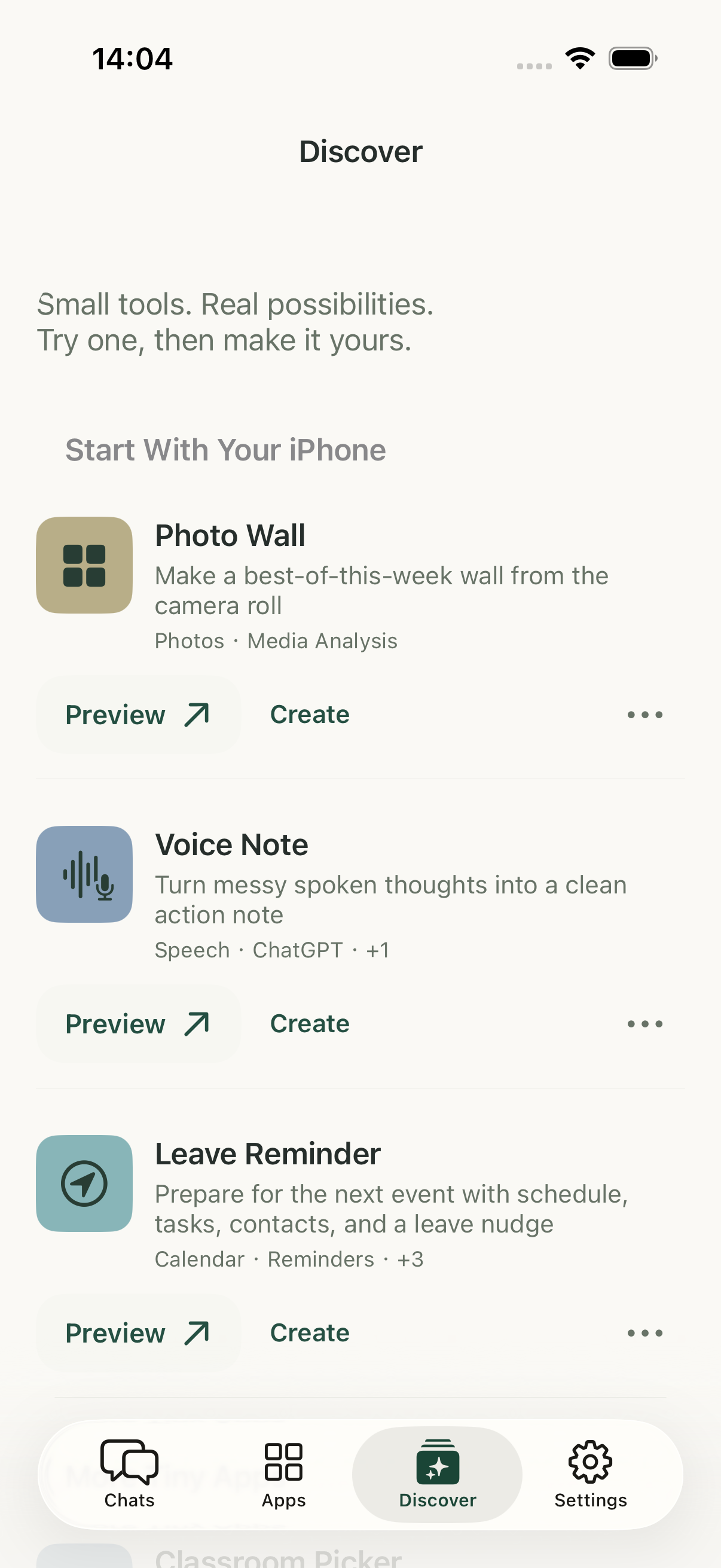
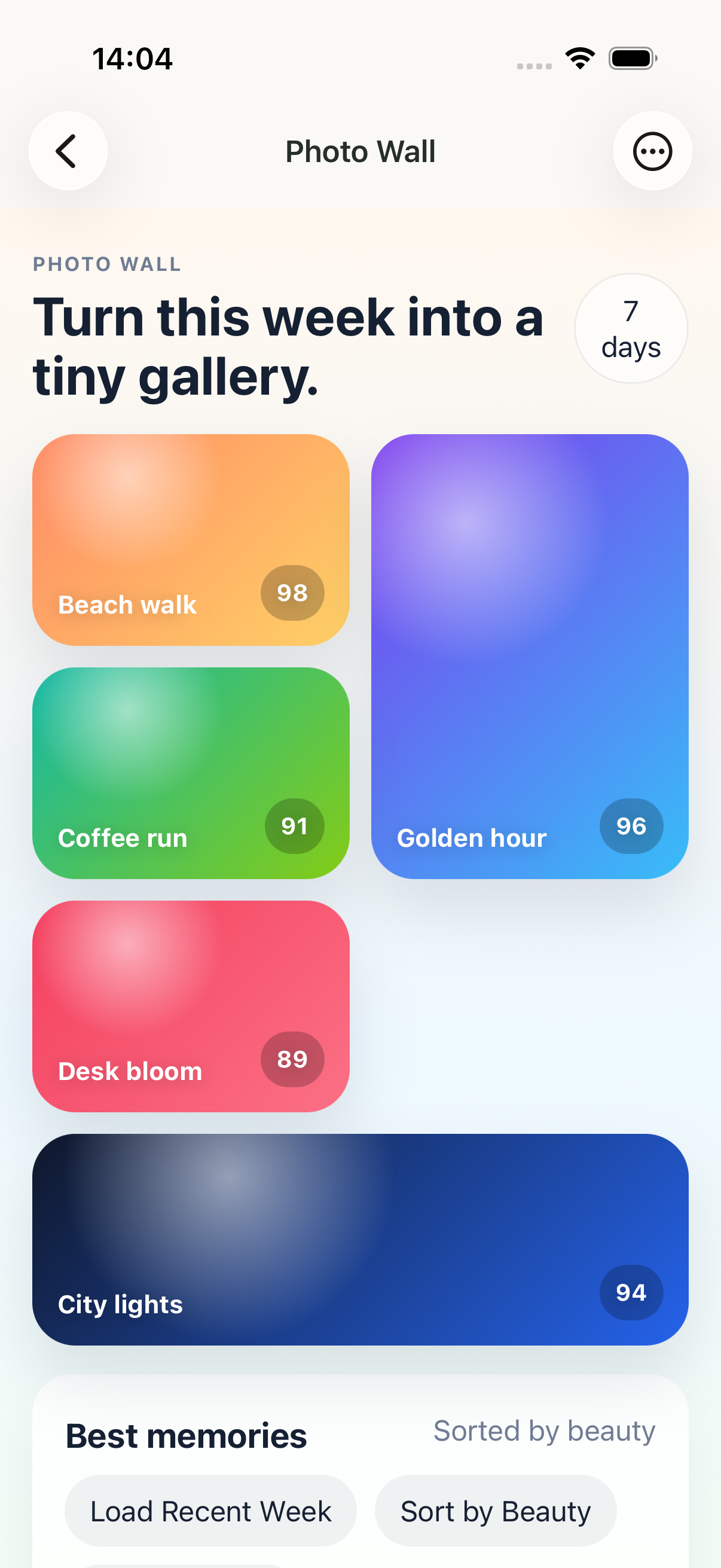
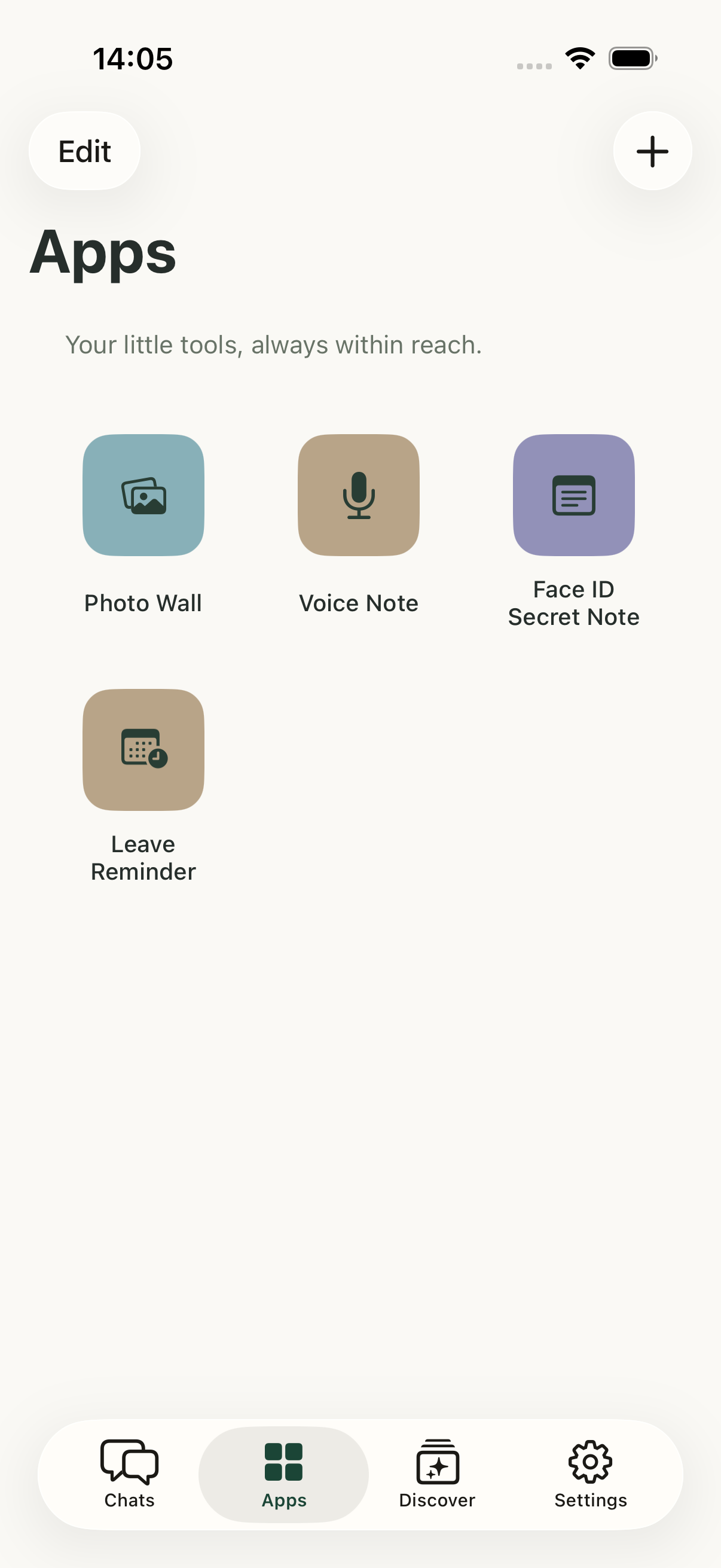
These example screens come from Leafling’s App Store screenshot set and use sample content. They are not a recording of an AI request or a person’s photo library. The separate video above shows its own source and test-build details.
Trying the example uses no saved-app slot. Use This saves a copy and counts toward the free plan’s 3 created or imported apps.
A request for your own version
After trying the example, you can connect AI and ask for your own app. Start with one clear request, then check the result:
You can select and copy the text above.
This is a suggested request, not a recorded AI result. AI creation and changes need internet and your chosen ChatGPT or OpenAI API connection; its access, usage limits, and billing apply. Check the generated app before relying on it.
A personal workflow to explore
A voice checklist illustrates the kind of connection we want to make easy: speak, review the transcript, choose tasks, and confirm which ones to add to Reminders. Later, return to chat to separate work and personal categories inside your own app.
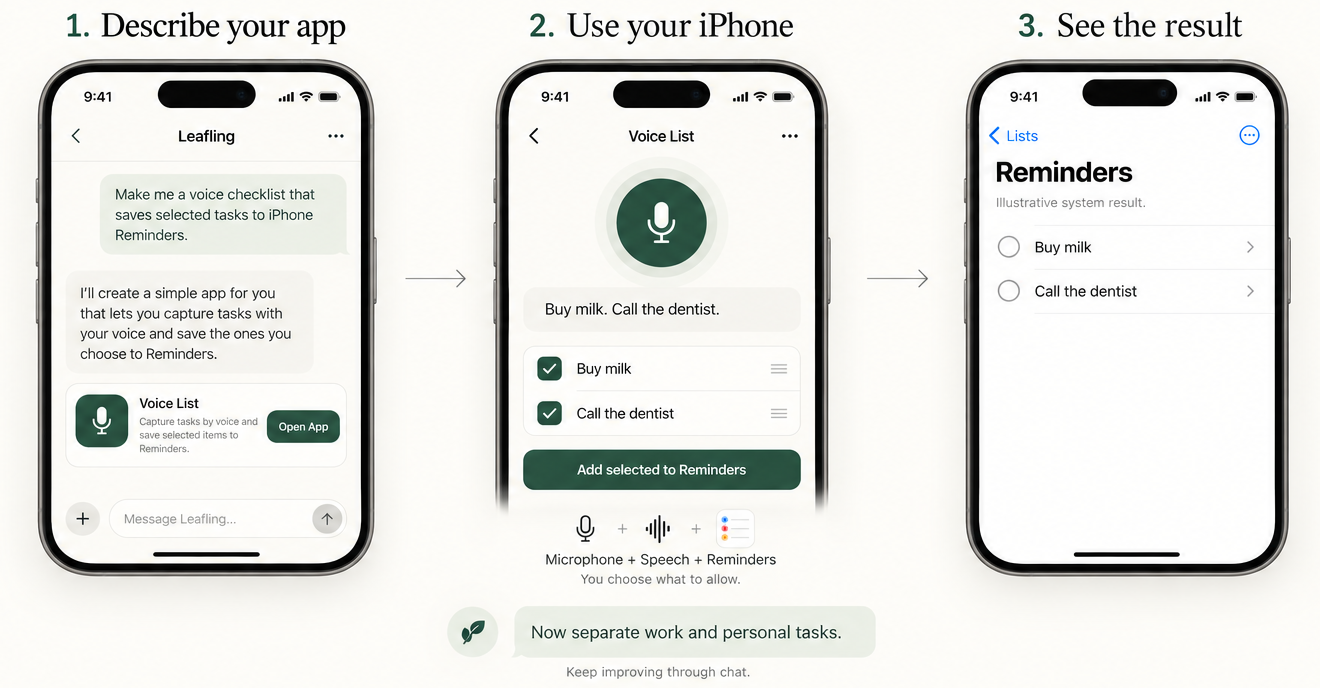
Keep changing the same app
A personal tool does not have to be finished in one request. You can ask for a different layout, another category, or an extra supported action, then keep using the app inside Leafling. The point is a tool that fits you and can change with you.
Leafling is free to download. You can try official examples before signing in. AI chat, creation, editing, and AI features in personal apps require internet and your chosen ChatGPT or OpenAI API connection; its access, usage limits, and billing apply. Generated apps run inside Leafling.
Get Leafling on the App Store